It is a free program for your computer. When you give your child school work to do,
they open it in this program instead of the internet. It fills the whole screen and
gently puts everything else away, so there are no games, videos or other websites to
pull them off track. When the work is finished, the computer goes straight back to normal.
Windows only. Windows 10 or newer. Included with our Advanced and Premium plans.
Version 0.1.0, Beta
Safe and verified. Microsoft has checked that our company is real, and every copy is signed so Windows can show it truly comes from PediaSoft I.T. Pty Ltd, and has not been changed by anyone else.
Made for calm, focused school time
However you set the work, your child can give it their full attention.
For parents
Homework gets done properly at home. Once your child starts, the games and videos are put away until the work is finished. You do not need to sit beside them the whole time.
For teachers
Give your class a test or a quiz and know the answers are their own. While it is open, no one can look things up, copy, or open anything else on the computer.
For tutors
Set work between lessons that actually gets finished. Your student stays on the task, with nothing else on the screen to pull them away.
What happens while your child works
It only does these things while the school work is open. Nothing else on the computer is touched.
Nothing gets in the way
The school work fills the whole screen and stays in front. No games, no videos and no messages, until it is finished.
No copying
They cannot copy the answers in from somewhere else, so the work is truly their own.
No photos of the screen
The screen cannot be photographed or recorded, so the questions cannot be passed on to a friend.
SubjectCoach only
It only opens SubjectCoach. No other websites will open inside it at all.
Back to normal on its own
The moment the work is handed in, the computer works as normal again. There is nothing for you to switch off.
You are in charge
You decide whether your child can stop early, or must check with you first.
How to use it
1Put the program on each computer your child will use. You only do this once.
2Set the work the same way you always do.
3Tick the little box that says to use the SubjectCoach Secure Browser.
4Your child clicks the work as usual, and it opens in the program.
If your child opens the work in the internet by mistake, it will offer to open the program instead.
They may need to sign in again inside the program, so it helps to put it on the computer before you set the work.
What you will see when you install it
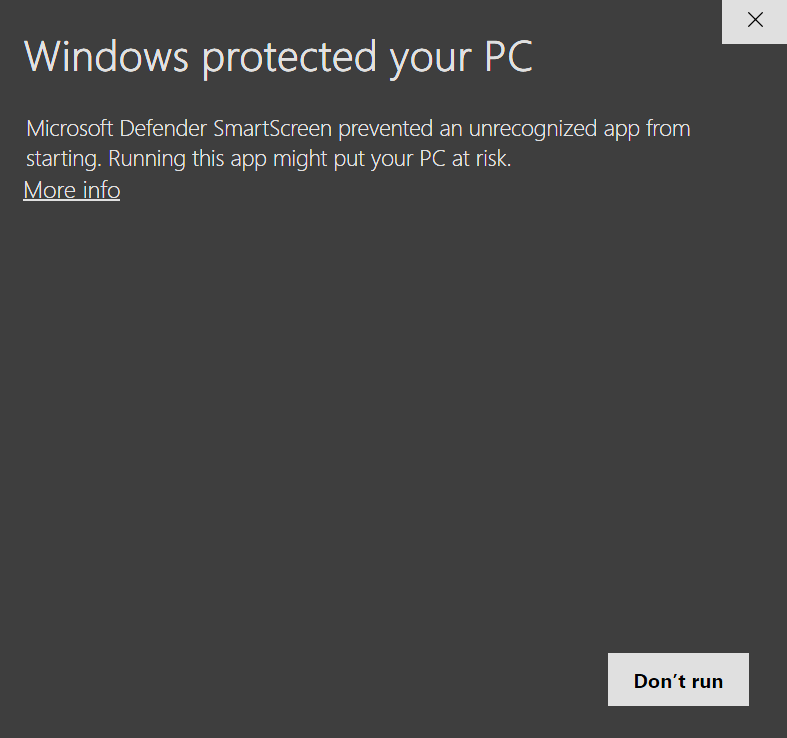
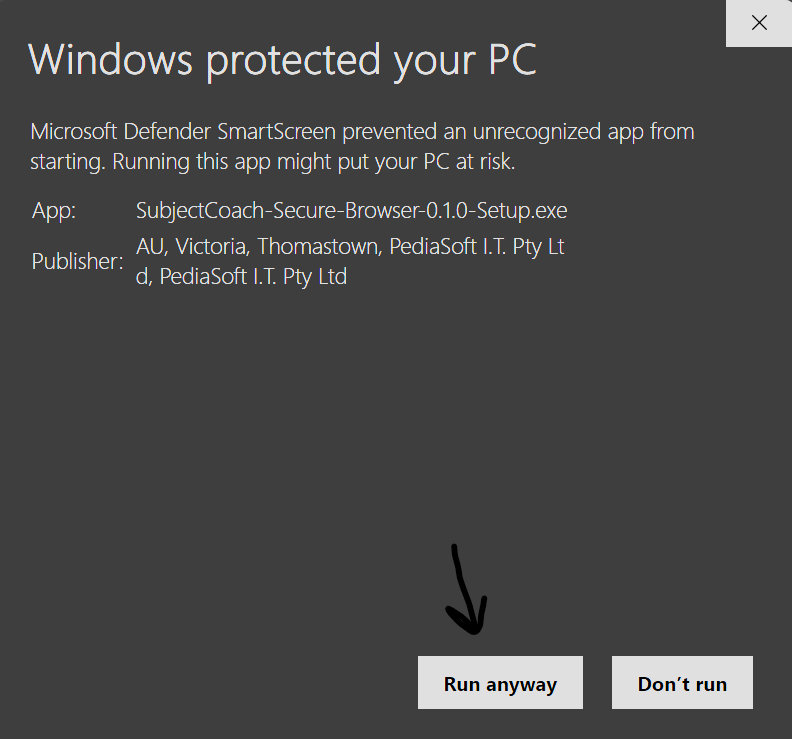
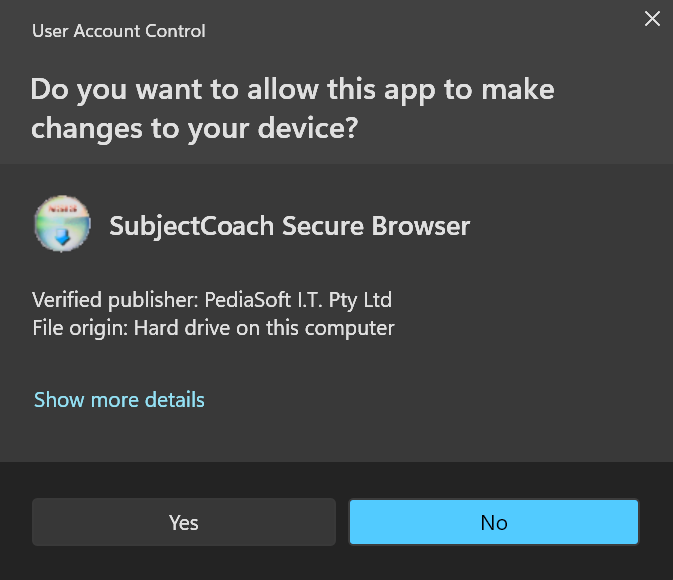
Because the program is brand new, Windows shows a couple of safety checks the first time. This is normal. Here is exactly what to do.
1 Windows shows a blue message. Click More info.2 Now you can see our name, PediaSoft I.T. Pty Ltd. Click Run anyway.3 Windows checks it is really us: Verified publisher: PediaSoft I.T. Pty Ltd. Click Yes.
You only see these the first time. They become rarer as more schools install the program.
Only ever get this program from this page, on subjectcoach.com.
We will never send it to you in an email, and we will never ask you to get it from anywhere else.
If someone offers it to you from another place, please do not use it.
What is new
Version 0.1.0
Latest
The first version. It runs your child's school work on its own, filling the screen and keeping everything else out of the way until the work is handed in.
School work fills the whole screen and stays there until your child hands it in.
They cannot copy answers in from somewhere else while they work.
The screen cannot be photographed or recorded.
The window cannot be closed in the middle of the work. When no work is open, closing it checks with you first.
It only opens SubjectCoach. No other websites will open inside it.
Schools can set their own secret code to let a child out early if they ever need to.
Menus and extra links are tidied away while your child works, leaving a clean and simple screen.
Common questions
Which plans include it?
It comes with our Advanced and Premium plans, at no extra cost. Sign in with one of those plans and the download button will appear. Once you have it, you can put it on as many computers as you like.
Will it change my computer?
No. It only does something while the school work is open, and only in its own window. It changes nothing else on your computer, and nothing keeps running after you close it.
Can we still use the computer normally?
Yes. Only the work you choose to lock uses this program. Everything else works just as it does today.
How does my child stop the work?
That is up to you. You can let them stop after a warning, or ask them to check with you first.
Which computers does it work on?
Windows computers only (Windows 10 or newer). It does not work on Mac, iPad, iPhone, Chromebook, Android phones or tablets, or Linux. If your child uses one of those, set the work without the lock for now and let us know at support@subjectcoach.com. It helps us decide what to build next.
Is it safe to download?
Yes. Microsoft has checked that our company, PediaSoft I.T. Pty Ltd, is real, and every copy is signed so Windows can confirm it came from us and has not been changed. When you open it, Windows shows our name. If a brand new version is still new to Windows you may see a short caution the very first time. Our name will be on it, so you can click More info and then Run anyway.
THANK YOU FOR STOPPING BY!
Get FREE educational material sent directly to your inbox.
Our free resources includes (but not limited to):